继续之前的属性动画讲解。上一篇http://blog.csdn.net/liuyi1207164339/article/details/53590451对属性动画进行了较为详细的讲解,包括ValueAnimator、ObjectAnimator、AnimateSet以及自定义TypeEvaluator等等,接下来继续讲解属性动画其他的一些知识点。
属性动画系统提供了当ViewGroup改变时,对改变的部分执行动画的能力。这样说可能有点抽象,简单的说:当我们往ViewGroup里面添加View或者删除View的时候所出现的动画。主要是用的类是LayoutTransition这个类。当你把一个View加入到ViewGroup、从ViewGroup中把这个View移除的时候、调用View的setVisibility()方法的时候,这个View能够表现出出现以及消失的动画。同时,这个ViewGroup中剩下的View移动到新的位置上的时候,也能执行动画。
通过调用LayoutTransition对象的setAnimator方法,传递一个Animator对象以及四个LayoutTransition常量中的一个,这四个常量代表四种不同的动画类型: APPEARING:代表动画对正在加入到container中的view有效 CHANGE_APPEARING:代表动画对由于正在加入新的view的原因导致其位置发生改变的View有效 DISAPPEARING:代表动画对正在从container中消失的view有效 CHANGE_DISAPPEARING:代表动画对由于一个view正在从container中消失导致其位置发生改变的view有效
我们可以为这四种类型的事件来进行自定义动画或者直接使用默认的动画。
下面来看一个例子。
首先是布局文件:
<?xml version="1.0" encoding="utf-8"?><LinearLayout xmlns:android="http://schemas.android.com/apk/res/android" android:orientation="vertical" android:layout_width="match_parent" android:layout_height="wrap_content" android:id="@+id/parent" > <LinearLayout android:orientation="horizontal" android:layout_width="match_parent" android:layout_height="match_parent" > <Button android:layout_width="wrap_content" android:layout_height="wrap_content" android:text="Add Button" android:id="@+id/addNewButton" /> <CheckBox android:layout_width="wrap_content" android:layout_height="wrap_content" android:text="Custom Animations" android:id="@+id/customAnimCB" /> </LinearLayout> <LinearLayout android:orientation="horizontal" android:layout_width="match_parent" android:layout_height="wrap_content" > <CheckBox android:layout_width="wrap_content" android:layout_height="wrap_content" android:checked="true" android:text="In" android:id="@+id/appearingCB" /> <CheckBox android:layout_width="wrap_content" android:layout_height="wrap_content" android:checked="true" android:text="Out" android:id="@+id/disappearingCB" /> </LinearLayout> <LinearLayout android:orientation="horizontal" android:layout_width="match_parent" android:layout_height="wrap_content" > <CheckBox android:layout_width="wrap_content" android:layout_height="wrap_content" android:checked="true" android:text="Changing-In" android:id="@+id/changingAppearingCB" /> <CheckBox android:layout_width="wrap_content" android:layout_height="wrap_content" android:checked="true" android:text="Changing-Out" android:id="@+id/changingDisappearingCB" /> </LinearLayout></LinearLayout>然后是Activity:
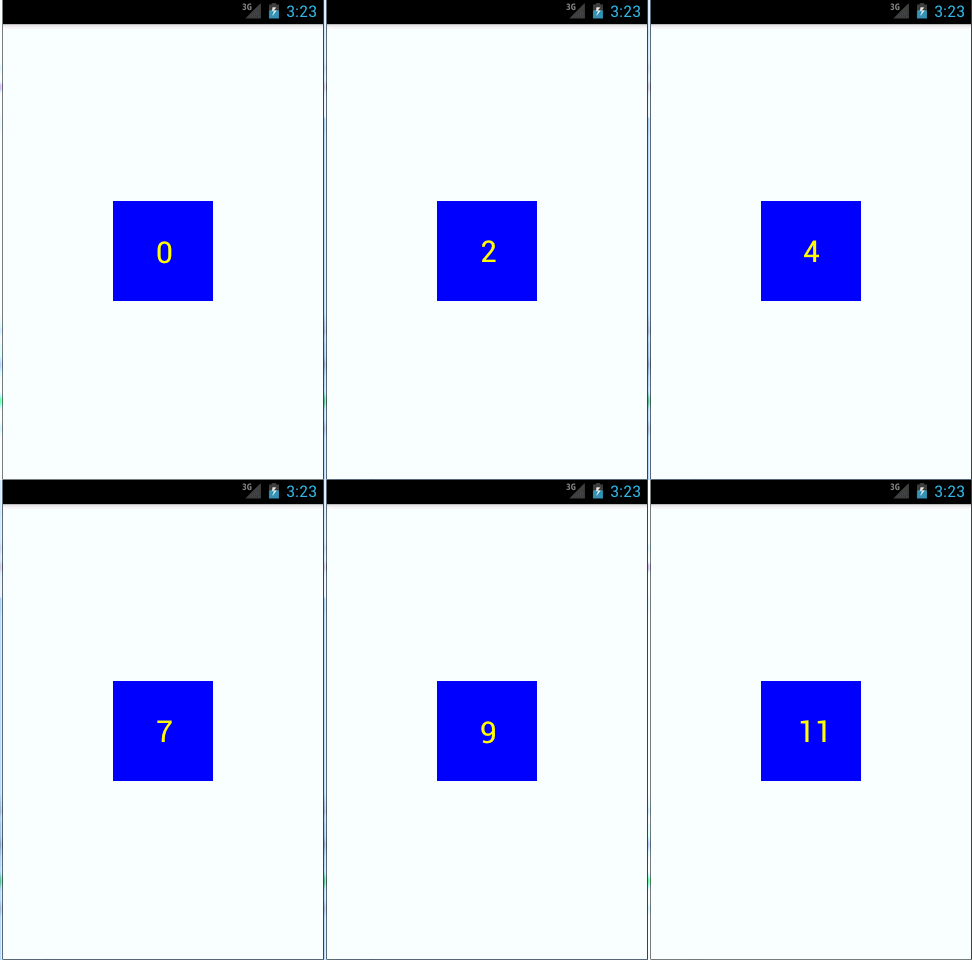
package com.easyliu.test.animationdemo;import android.animation.Animator;import android.animation.AnimatorListenerAdapter;import android.animation.Keyframe;import android.animation.LayoutTransition;import android.animation.ObjectAnimator;import android.animation.PRopertyValuesHolder;import android.app.Activity;import android.os.Bundle;import android.view.View;import android.view.ViewGroup;import android.widget.Button;import android.widget.CheckBox;import android.widget.CompoundButton;public class LayoutAnimationsActivity extends Activity { private int numButtons = 1; ViewGroup container = null; Animator defaultAppearingAnim, defaultDisappearingAnim; Animator defaultChangingAppearingAnim, defaultChangingDisappearingAnim; Animator customAppearingAnim, customDisappearingAnim; Animator customChangingAppearingAnim, customChangingDisappearingAnim; Animator currentAppearingAnim, currentDisappearingAnim; Animator currentChangingAppearingAnim, currentChangingDisappearingAnim; /** Called when the activity is first created. */ @Override public void onCreate(Bundle savedInstanceState) { super.onCreate(savedInstanceState); setContentView(R.layout.activity_layout_animation); container = new FixedGridLayout(this); container.setClipChildren(false); ((FixedGridLayout)container).setCellHeight(90); ((FixedGridLayout)container).setCellWidth(100); final LayoutTransition transitioner = new LayoutTransition(); container.setLayoutTransition(transitioner); defaultAppearingAnim = transitioner.getAnimator(LayoutTransition.APPEARING); defaultDisappearingAnim = transitioner.getAnimator(LayoutTransition.DISAPPEARING); defaultChangingAppearingAnim = transitioner.getAnimator(LayoutTransition.CHANGE_APPEARING); defaultChangingDisappearingAnim = transitioner.getAnimator(LayoutTransition.CHANGE_DISAPPEARING); createCustomAnimations(transitioner); currentAppearingAnim = defaultAppearingAnim; currentDisappearingAnim = defaultDisappearingAnim; currentChangingAppearingAnim = defaultChangingAppearingAnim; currentChangingDisappearingAnim = defaultChangingDisappearingAnim; ViewGroup parent = (ViewGroup) findViewById(R.id.parent); parent.addView(container); parent.setClipChildren(false); Button addButton = (Button) findViewById(R.id.addNewButton); addButton.setOnClickListener(new View.OnClickListener() { public void onClick(View v) { Button newButton = new Button(LayoutAnimationsActivity.this); newButton.setText(String.valueOf(numButtons++)); newButton.setOnClickListener(new View.OnClickListener() { public void onClick(View v) { container.removeView(v); } }); container.addView(newButton, Math.min(1, container.getChildCount())); } }); CheckBox customAnimCB = (CheckBox) findViewById(R.id.customAnimCB); customAnimCB.setOnCheckedChangeListener(new CompoundButton.OnCheckedChangeListener() { public void onCheckedChanged(CompoundButton buttonView, boolean isChecked) { setupTransition(transitioner); } }); // Check for disabled animations CheckBox appearingCB = (CheckBox) findViewById(R.id.appearingCB); appearingCB.setOnCheckedChangeListener(new CompoundButton.OnCheckedChangeListener() { public void onCheckedChanged(CompoundButton buttonView, boolean isChecked) { setupTransition(transitioner); } }); CheckBox disappearingCB = (CheckBox) findViewById(R.id.disappearingCB); disappearingCB.setOnCheckedChangeListener(new CompoundButton.OnCheckedChangeListener() { public void onCheckedChanged(CompoundButton buttonView, boolean isChecked) { setupTransition(transitioner); } }); CheckBox changingAppearingCB = (CheckBox) findViewById(R.id.changingAppearingCB); changingAppearingCB.setOnCheckedChangeListener(new CompoundButton.OnCheckedChangeListener() { public void onCheckedChanged(CompoundButton buttonView, boolean isChecked) { setupTransition(transitioner); } }); CheckBox changingDisappearingCB = (CheckBox) findViewById(R.id.changingDisappearingCB); changingDisappearingCB.setOnCheckedChangeListener(new CompoundButton.OnCheckedChangeListener() { public void onCheckedChanged(CompoundButton buttonView, boolean isChecked) { setupTransition(transitioner); } }); } private void setupTransition(LayoutTransition transition) { CheckBox customAnimCB = (CheckBox) findViewById(R.id.customAnimCB); CheckBox appearingCB = (CheckBox) findViewById(R.id.appearingCB); CheckBox disappearingCB = (CheckBox) findViewById(R.id.disappearingCB); CheckBox changingAppearingCB = (CheckBox) findViewById(R.id.changingAppearingCB); CheckBox changingDisappearingCB = (CheckBox) findViewById(R.id.changingDisappearingCB); transition.setAnimator(LayoutTransition.APPEARING, appearingCB.isChecked() ? (customAnimCB.isChecked() ? customAppearingAnim : defaultAppearingAnim) : null); transition.setAnimator(LayoutTransition.DISAPPEARING, disappearingCB.isChecked() ? (customAnimCB.isChecked() ? customDisappearingAnim : defaultDisappearingAnim) : null); transition.setAnimator(LayoutTransition.CHANGE_APPEARING, changingAppearingCB.isChecked() ? (customAnimCB.isChecked() ? customChangingAppearingAnim : defaultChangingAppearingAnim) : null); transition.setAnimator(LayoutTransition.CHANGE_DISAPPEARING, changingDisappearingCB.isChecked() ? (customAnimCB.isChecked() ? customChangingDisappearingAnim : defaultChangingDisappearingAnim) : null); } private void createCustomAnimations(LayoutTransition transition) { // Changing while Adding PropertyValuesHolder pvhLeft = PropertyValuesHolder.ofInt("left", 0, 1); PropertyValuesHolder pvhTop = PropertyValuesHolder.ofInt("top", 0, 1); PropertyValuesHolder pvhRight = PropertyValuesHolder.ofInt("right", 0, 1); PropertyValuesHolder pvhBottom = PropertyValuesHolder.ofInt("bottom", 0, 1); PropertyValuesHolder pvhScaleX = PropertyValuesHolder.ofFloat("scaleX", 1f, 0f, 1f); PropertyValuesHolder pvhScaleY = PropertyValuesHolder.ofFloat("scaleY", 1f, 0f, 1f); customChangingAppearingAnim = ObjectAnimator.ofPropertyValuesHolder( this, pvhLeft, pvhTop, pvhRight, pvhBottom, pvhScaleX, pvhScaleY). setDuration(transition.getDuration(LayoutTransition.CHANGE_APPEARING)); customChangingAppearingAnim.addListener(new AnimatorListenerAdapter() { public void onAnimationEnd(Animator anim) { View view = (View) ((ObjectAnimator) anim).getTarget(); view.setScaleX(1f); view.setScaleY(1f); } }); // Changing while Removing Keyframe kf0 = Keyframe.ofFloat(0f, 0f); Keyframe kf1 = Keyframe.ofFloat(.9999f, 360f); Keyframe kf2 = Keyframe.ofFloat(1f, 0f); PropertyValuesHolder pvhRotation = PropertyValuesHolder.ofKeyframe("rotation", kf0, kf1, kf2); customChangingDisappearingAnim = ObjectAnimator.ofPropertyValuesHolder( this, pvhLeft, pvhTop, pvhRight, pvhBottom, pvhRotation). setDuration(transition.getDuration(LayoutTransition.CHANGE_DISAPPEARING)); customChangingDisappearingAnim.addListener(new AnimatorListenerAdapter() { public void onAnimationEnd(Animator anim) { View view = (View) ((ObjectAnimator) anim).getTarget(); view.setRotation(0f); } }); // Adding customAppearingAnim = ObjectAnimator.ofFloat(null, "rotationY", 90f, 0f). setDuration(transition.getDuration(LayoutTransition.APPEARING)); customAppearingAnim.addListener(new AnimatorListenerAdapter() { public void onAnimationEnd(Animator anim) { View view = (View) ((ObjectAnimator) anim).getTarget(); view.setRotationY(0f); } }); // Removing customDisappearingAnim = ObjectAnimator.ofFloat(null, "rotationX", 0f, 90f). setDuration(transition.getDuration(LayoutTransition.DISAPPEARING)); customDisappearingAnim.addListener(new AnimatorListenerAdapter() { public void onAnimationEnd(Animator anim) { View view = (View) ((ObjectAnimator) anim).getTarget(); view.setRotationX(0f); } }); }}执行效果如下所示,效果中包括了系统默认的布局动画和自定义的布局动画。 
当然,我们也可以在xml当中使能ViewGroup的默认LayoutTransition,只需要设置android:animateLayoutchanges为true就行,如下所示。设置了这个参数,默认上面说的四种类型的动画都会生效。
<LinearLayout android:orientation="vertical" android:layout_width="wrap_content" android:layout_height="match_parent" android:id="@+id/verticalContainer" android:animateLayoutChanges="true" />一个关键帧对象包含一个键值对,用于指定在动画的执行过程中某个特殊时刻的特殊状态,如下代码所示。每一个关键帧可以有自己的interpolator,用于控制上一帧到这一帧之间的时间间隔的动画表现,从而表现出更加丰富的动画,上面的LayoutTransition示例当中就使用了关键帧。关键帧的使用方式如下所示:
Keyframe kf0 = Keyframe.ofFloat(0f, 0f);Keyframe kf1 = Keyframe.ofFloat(.5f, 360f);Keyframe kf2 = Keyframe.ofFloat(1f, 0f);PropertyValuesHolder pvhRotation = PropertyValuesHolder.ofKeyframe("rotation", kf0, kf1, kf2);ObjectAnimator rotationAnim = ObjectAnimator.ofPropertyValuesHolder(target, pvhRotation)rotationAnim.setDuration(5000ms);ViewPropertyAnimator可以对View的多种属性同时执行动画,只使用一个Animator对象。当我们需要同时改变多个属性的值的时候,使用这种方式更加便捷。下面的代码展示了使用AnimatorSet、单个ObjectAnimator以及ViewPropertyAnimator来同时对view的”x“和”y”属性执行动画时,他们之间的差异:
使用AnimatorSet:
ObjectAnimator animX = ObjectAnimator.ofFloat(myView, "x", 50f);ObjectAnimator animY = ObjectAnimator.ofFloat(myView, "y", 100f);AnimatorSet animSetXY = new AnimatorSet();animSetXY.playTogether(animX, animY);animSetXY.start();使用一个ObjectAnimator:
PropertyValuesHolder pvhX = PropertyValuesHolder.ofFloat("x", 50f);PropertyValuesHolder pvhY = PropertyValuesHolder.ofFloat("y", 100f);ObjectAnimator.ofPropertyValuesHolder(myView, pvhX, pvyY).start();使用ViewPropertyAnimator:
myView.animate().x(50f).y(100f);通过以上对比可以发现使用使用ViewPropertyAnimator要简洁得多
应该说在xml中定义动画是更常见的一种方式,这样便于复用。从Android3.1开始,为了和View Animation区分开来,属性动画需要放在res/animator目录下面,支持三种xml节点: animator节点代表ValueAnimator objectAnimator节点代表ObjectAnimator set节点代表AnimatorSet
如下所示,下面的代码代表一个AnimatorSet里面包裹一个AnimatorSet和一个ObjectAnimator,这个Set和这个ObjectAniamtor按顺序执行,而这个Set里面的两个ObjectAnimator同时执行。
<set android:ordering="sequentially"> <set> <objectAnimator android:propertyName="x" android:duration="500" android:valueTo="400" android:valueType="intType"/> <objectAnimator android:propertyName="y" android:duration="500" android:valueTo="300" android:valueType="intType"/> </set> <objectAnimator android:propertyName="alpha" android:duration="500" android:valueTo="1f"/></set>xml中的动画的加载方式如下所示:
AnimatorSet set = (AnimatorSet) AnimatorInflater.loadAnimator(myContext, R.anim.property_animator);set.setTarget(myObject);set.start();到此为止,属性动画的知识点基本上都覆盖到了。
参考:https://developer.android.google.cn/guide/topics/graphics/prop-animation.html#declaring-xml 源码下载:https://github.com/EasyLiu-Ly/AndroidBlogDemo
新闻热点






疑难解答