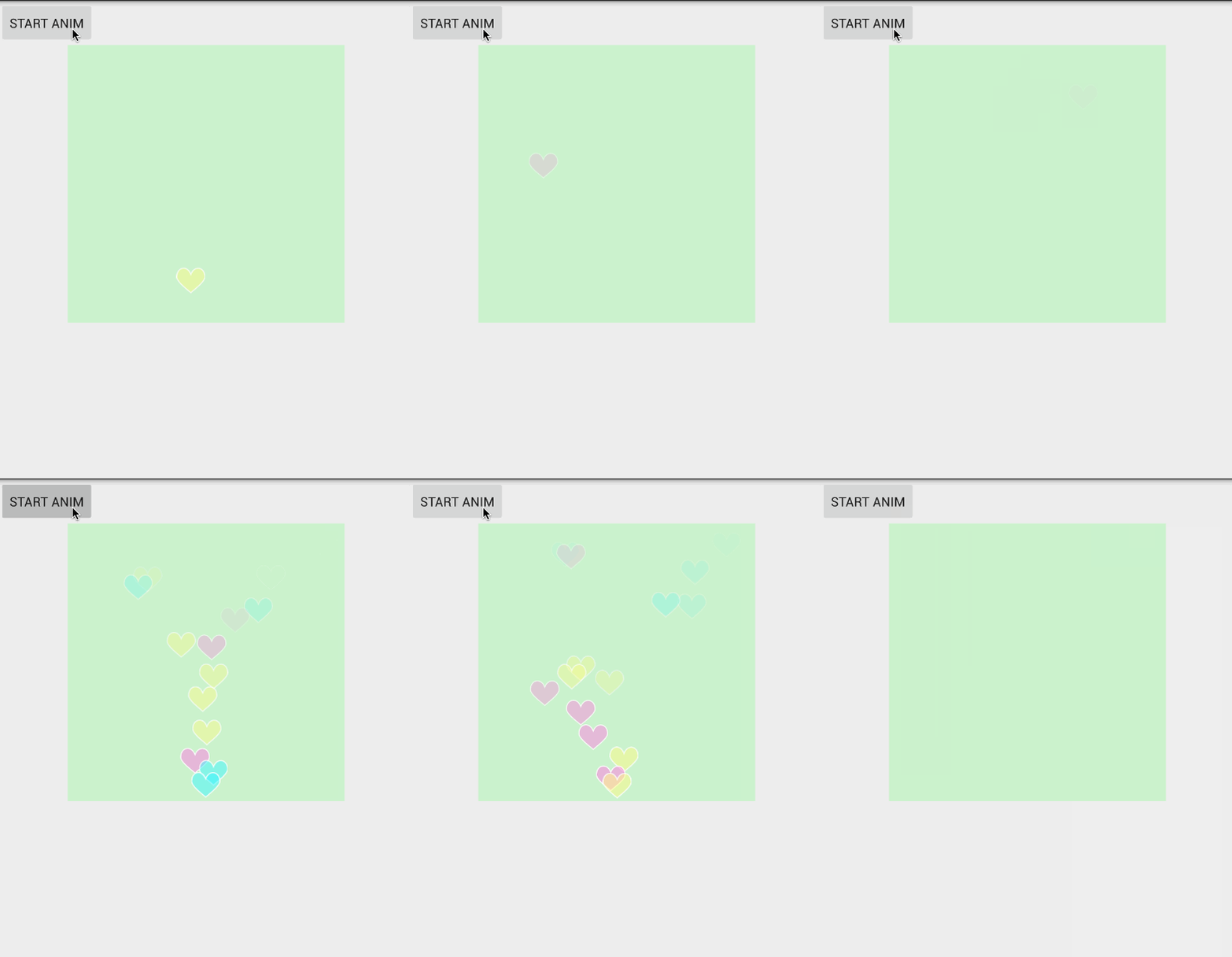
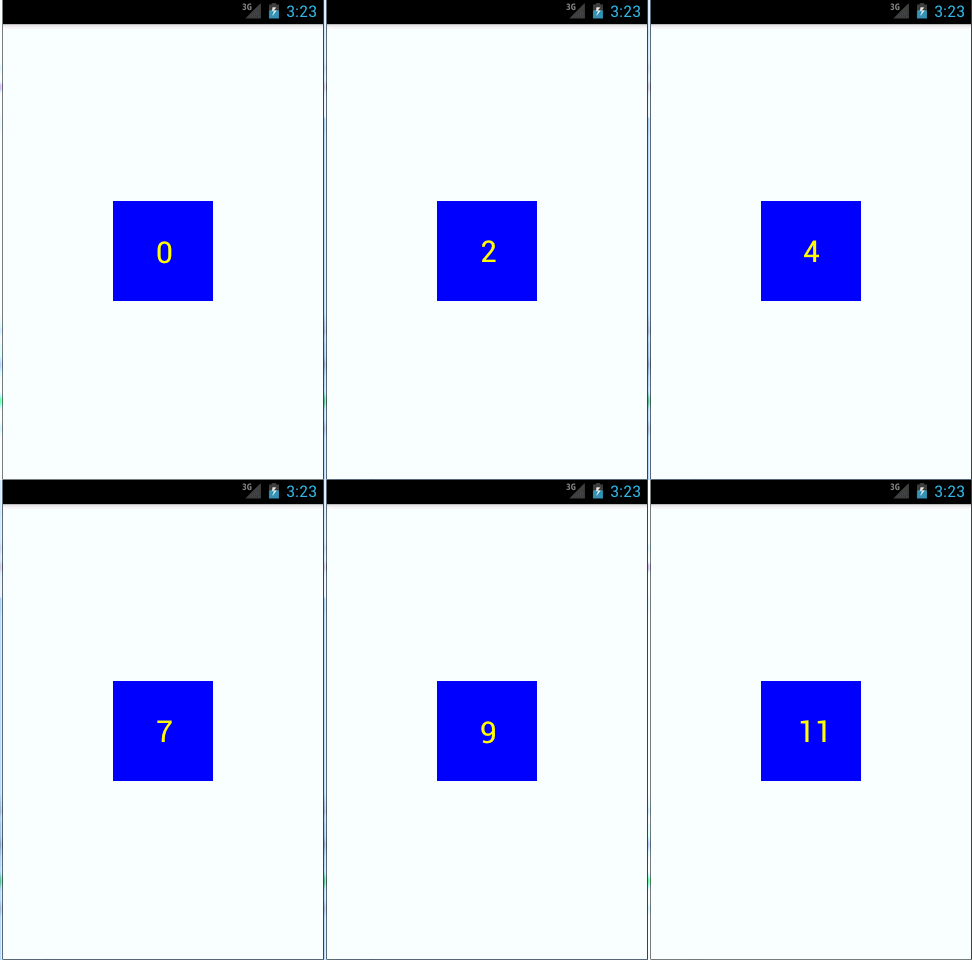
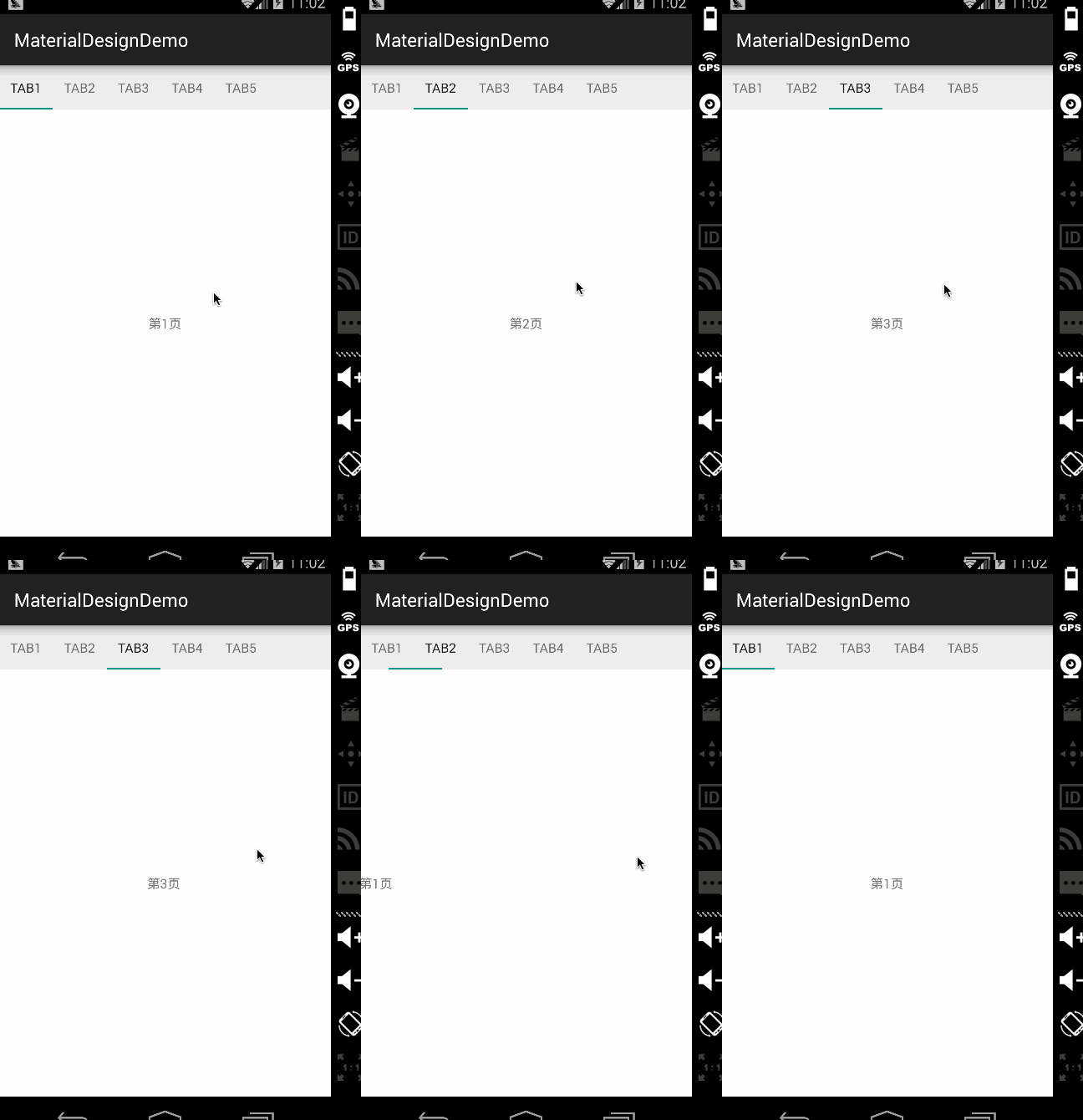
补间动画只能完成移动,缩放,旋转和淡入淡出的操作,而且只能作用在View上,只是改变了View的显示效果,而不会真正改变view的属性。比如通过补间动画把button移到屏幕其它位置,现在去点击这个button是不会触发点击事件,button实际还是停留在原来的位置。属性动画可以对任意对象进行动画而不仅仅是view,在一定时间间隔里完成对象从一个属性值到另一个属性值的改变。动画默认时间间隔是300ms,默认帧率是10 ms/帧。在api11以前,导入nineoldandroids动画库使用属性动画。
使用属性动画的常用方法: 1. 采用ValueAnimator,监听动画过程,自己实现属性的改变 2. 采用ObjectAnimator直接对任意对象的任意属性进行动画操作。 3. 使用xml编写动画
ValueAnimator本身不作用于任何对象,也就是直接使用它没有任何动画效果。它可以对一个值做动画,完成从初始值平滑地过渡到结束值这样的效果,然后我们可以监听其动画过程,在动画过程中修改我们对象的属性值,相当于我们的对象做了动画。
在3s内设置buton透明度,从0f到1f,最后再到0.5f。
ValueAnimator anim = ValueAnimator.ofFloat(0f, 1f,0.5f); anim.addUpdateListener(new ValueAnimator.AnimatorUpdateListener() { @Override public void onAnimationUpdate(ValueAnimator animation) { button.setAlpha((Float) animation.getAnimatedValue()); } }); anim.setDuration(3000); anim.start();
在这个例子中我们通过给值做动画,在onAnimationUpdate监听值的变化,通过setAlpha()方法修改透明度属性。相同的,我们也可以通过setRotation(),setTranslationX(),setScaleX()方法分别完成旋转,水平移动,水平缩放的动画。也可以更改其他属性,完成其他类型的动画。ValueAnimator.ofInt(),与ValueAnimator.ofFloat()类似。
ValueAnimator对象调用setStartDelay()方法来设置动画延迟播放的时间,调用setRepeatCount()设置动画循环播放的次数和setRepeatMode()方法设置循环播放的模式
ValueAnimator.ofObject()是对任意对象进行动画操作的,如果要对其他类型(非int,float,color)做动画,那么需要自定义类型估值算法,告诉系统如何从初始值过渡到结束值。
先了解TypeEvaluator的作用:告诉动画系统如何从初始值过渡到到结束值。
如:调用了ValueAnimator.ofFloat()方法,之后通过系统内置FloatEvaluator计算告知动画系统如何从初始值过渡到结束值。
public class FloatEvaluator implements TypeEvaluator<Number> { public Float evaluate(float fraction, Number startValue, Number endValue) { float startFloat = startValue.floatValue(); return startFloat + fraction * (endValue.floatValue() - startFloat); }}FloatEvaluator实现了TypeEvaluator接口,然后重写evaluate()方法。evaluate()方法当中传入了三个参数,第一个参数fraction,这个参数表示动画的完成度,第二第三个参数分别表示动画的初始值和结束值。evaluate()方法返回当前动画的值,并在AnimatorUpdateListener.onAnimationUpdate()中可以获取然后使用
例子:在5s的时间里,实现小球的自由落体
定义一个Point类,管理坐标
public class Point { PRivate float x; private float y; public Point(float x, float y) { this.x = x; this.y = y; } public float getX() { return x; } public float getY() { return y; }}定义PointEvaluator,实现了TypeEvaluator接口并重写了evaluate()方法,告诉动画系统坐标如何从初始值过渡到到结束值
public class PointEvaluator implements TypeEvaluator { @Override public Object evaluate(float fraction, Object startValue, Object endValue) { Point startPoint = (Point) startValue; Point endPoint = (Point) endValue; float x = startPoint.getX() + fraction * (endPoint.getX() - startPoint.getX()); float y = startPoint.getY() + fraction * (endPoint.getY() - startPoint.getY()); Point point = new Point(x, y); return point; }}新建一个MyAnimView继承自View,绘制的逻辑是由currentPoint这个对象控制的,如果currentPoint对象不等于空,那么就调用drawCircle()方法在currentPoint的坐标位置画出一个半径为50的圆,如果currentPoint对象是空,那么就调用startAnimation()方法来启动动画。
public class MyAnimView extends View{ public static final float RADIUS = 50f; private Point currentPoint; private Paint mPaint; public MyAnimView(Context context, AttributeSet attrs) { super(context, attrs); mPaint = new Paint(Paint.ANTI_ALIAS_FLAG); mPaint.setColor(Color.BLUE); } @Override protected void onDraw(Canvas canvas) { if (currentPoint == null) { currentPoint = new Point(RADIUS, RADIUS); drawCircle(canvas); startAnimation(); } else { drawCircle(canvas); } } private void drawCircle(Canvas canvas) { float x = currentPoint.getX(); float y = currentPoint.getY(); canvas.drawCircle(x, y, RADIUS, mPaint); } private void startAnimation() { Point startPoint = new Point(RADIUS, RADIUS); Point endPoint = new Point(RADIUS, getHeight() - RADIUS); ValueAnimator anim = ValueAnimator.ofObject(new PointEvaluator(), startPoint, endPoint); anim.addUpdateListener(new ValueAnimator.AnimatorUpdateListener() { @Override public void onAnimationUpdate(ValueAnimator animation) { currentPoint = (Point) animation.getAnimatedValue(); invalidate(); } }); anim.setDuration(5000); anim.start(); }}布局文件
<RelativeLayout xmlns:android="http://schemas.android.com/apk/res/android" android:layout_width="match_parent" android:layout_height="match_parent" > <com.yyy.shixi.propertyanimation.MyAnimView android:layout_width="match_parent" android:layout_height="match_parent" /></RelativeLayout>效果图: 
ObjectAnimator是直接对任意对象的任意属性进行动画操作。属性动画要求动画作用的对象提供该属性的get和set方法,属性动画根据外界传递的初始值和结束值,多次去调用set方法,每次传递给set方法的值都不一样。对object的属性abc做动画,让动画生效必须同时满足两个条件: 1. object必须提供setAbc方法,如果动画没有传递初始值,那么还需要提供getAbc方法,因为系统要去取abc属性的初始值(这条不满足,直接crash) 2. object的setAbc对属性abc所做的改变必须能够通过某种方法反映出来,比如会带来UI的改变之类(这条不满足,动画无效果但不会crash)
在3s内设置buton透明度,从0f到1f,最后再到0.5f。
/*ValueAnimator anim = ValueAnimator.ofFloat(0f, 1f,0.5f); anim.addUpdateListener(new ValueAnimator.AnimatorUpdateListener() { @Override public void onAnimationUpdate(ValueAnimator animation) { button.setAlpha((Float) animation.getAnimatedValue()); } });*/ ObjectAnimator anim = ObjectAnimator.ofFloat(button,"alpha",0f, 1f,0.5f); anim.setDuration(3000); anim.start();效果图 
代码注释掉的是ValueAnimator.ofFloat(float… values)用法,方便对比。 ObjectAnimator.ofFloat(Object target, String propertyName, float… values),第一个参数是操作的对象,第二个参数是对该对象的哪个属性进行操作。当第二个参数使用alpha、rotation、translationX和scaleY等这几个值,分别可以完成淡入淡出、旋转、水平移动、垂直缩放。我们可以传入任意的值到ofFloat()方法的第二个参数,因为ObjectAnimator在设计的时候就没有针对于View来进行设计,而是针对于任意对象的,它所负责的工作就是不断地向某个对象中的某个属性进行赋值,然后对象根据属性值的改变再来决定如何展现出来。
在5s的时间里,实现小球的自由落体
定义一个Point类,管理坐标,定义PointEvaluator,实现了TypeEvaluator接口并重写了evaluate()方法,告诉动画系统坐标如何从初始值过渡到到结束值,上面已经实现,代码省略。
ObjectAnimator内部的工作机制是通过寻找特定属性的get和set方法,然后通过方法不断地对值进行改变,从而实现动画效果的。因此我们就需要在MyAnimView中定义一个point属性,并提供它的get和set方法。
public class MyAnimView extends View{ public static final float RADIUS = 50f; private Point currentPoint; private Paint mPaint; public MyAnimView(Context context, AttributeSet attrs) { super(context, attrs); mPaint = new Paint(Paint.ANTI_ALIAS_FLAG); mPaint.setColor(Color.BLUE); } @Override protected void onDraw(Canvas canvas) { if (currentPoint == null) { currentPoint = new Point(RADIUS, RADIUS); drawCircle(canvas); startAnimation(); } else { drawCircle(canvas); } } private void drawCircle(Canvas canvas) { float x = currentPoint.getX(); float y = currentPoint.getY(); canvas.drawCircle(x, y, RADIUS, mPaint); } private void startAnimation() { Point startPoint = new Point(RADIUS, RADIUS); Point endPoint = new Point(RADIUS, getHeight() - RADIUS); /*ValueAnimator anim = ValueAnimator.ofObject(new PointEvaluator(), startPoint, endPoint); anim.addUpdateListener(new ValueAnimator.AnimatorUpdateListener() { @Override public void onAnimationUpdate(ValueAnimator animation) { currentPoint = (Point) animation.getAnimatedValue(); invalidate(); } });*/ ObjectAnimator anim = ObjectAnimator.ofObject(this,"point",new PointEvaluator(),startPoint, endPoint); anim.setDuration(5000); anim.start(); } public Point getPoint(){ return currentPoint; } public void setPoint(Point point){ this.currentPoint = point; invalidate(); }}代码注释掉的是ValueAnimator.ofObject(TypeEvaluator evaluator, Object… values)用法,方便对比。
效果图: 
Interpolator中文翻译为插值器,控制动画变化的速率。属性动画新增了一个TimeInterpolator接口,这个接口是用于兼容之前的Interpolator的,这使得所有过去的Interpolator实现类都可以直接拿过来放到属性动画当中使用。使用属性动画时,系统默认的Interpolator其实就是一个先加速后减速的Interpolator,对应的实现类就是AccelerateDecelerateInterpolator。
Interpolator的系统值:
AccelerateDecelerateInterpolator 在动画开始与结束的地方速率改变比较慢,在中间的时候加速
AccelerateInterpolator 在动画开始的地方速率改变比较慢,然后开始加速
AnticipateInterpolator 开始的时候向后然后向前甩
AnticipateOvershootInterpolator 开始的时候向后然后向前甩一定值后返回最后的值
BounceInterpolator 动画结束的时候弹起
CycleInterpolator 动画循环播放特定的次数,速率改变沿着正弦曲线
DecelerateInterpolator 在动画开始的地方快然后慢
LinearInterpolator 以常量速率改变
OvershootInterpolator 向前甩一定值后再回到原来位置
例子:在上个例子模拟球体下落并会反复弹起
anim.setInterpolator(new BounceInterpolator());效果图: 
TimeInterpolator的接口定义,代码:
/** * A time interpolator defines the rate of change of an animation. This allows animations * to have non-linear motion, such as acceleration and deceleration. */public interface TimeInterpolator { /** * Maps a value representing the elapsed fraction of an animation to a value that represents * the interpolated fraction. This interpolated value is then multiplied by the change in * value of an animation to derive the animated value at the current elapsed animation time. * * @param input A value between 0 and 1.0 indicating our current point * in the animation where 0 represents the start and 1.0 represents * the end * @return The interpolation value. This value can be more than 1.0 for * interpolators which overshoot their targets, or less than 0 for * interpolators that undershoot their targets. */ float getInterpolation(float input);}getInterpolation()方法中接收一个input参数,这个参数的值会随着动画的运行而不断变化,根据设定的动画时长匀速增加,变化范围是0到1。input的值是由系统经过计算后传入到getInterpolation()方法中的,然后我们可以自己实现getInterpolation()方法中的算法,根据input的值来计算出一个返回值,而这个返回值就是fraction了。返回值可以大于1.0,也可以小于0。所以input的值决定了fraction的值。
系统中内置的LinearInterpolator,它是以以常量速率改变,代码:
/** * An interpolator where the rate of change is constant */@HasNativeInterpolatorpublic class LinearInterpolator extends BaseInterpolator implements NativeInterpolatorFactory { public LinearInterpolator() { } public LinearInterpolator(Context context, AttributeSet attrs) { } public float getInterpolation(float input) { return input; } /** @hide */ @Override public long createNativeInterpolator() { return NativeInterpolatorFactoryHelper.createLinearInterpolator(); }}getInterpolation()方法中直接把参数中传递的input值返回,所以fraction的值等于input的值。求导为1,所以为匀速。
系统中内置的AccelerateDecelerateInterpolator,它是在动画开始与结束的地方速率改变比较慢,在中间的时候加速。即先加速后减速。代码:
/** * An interpolator where the rate of change starts and ends slowly but * accelerates through the middle. */@HasNativeInterpolatorpublic class AccelerateDecelerateInterpolator extends BaseInterpolator implements NativeInterpolatorFactory { public AccelerateDecelerateInterpolator() { } @SuppressWarnings({"UnusedDeclaration"}) public AccelerateDecelerateInterpolator(Context context, AttributeSet attrs) { } public float getInterpolation(float input) { return (float)(Math.cos((input + 1) * Math.PI) / 2.0f) + 0.5f; } /** @hide */ @Override public long createNativeInterpolator() { return NativeInterpolatorFactoryHelper.createAccelerateDecelerateInterpolator(); }}对 “(Math.cos((input + 1) * Math.PI) / 2.0f) + 0.5f”求导 得“(-Math.PI*Math.sin((input + 1) * Math.PI) / 2.0f) + 0.5f”,求导函数在0到0.5是增函数,0.5到1是减函数,原函数“(Math.cos((input + 1) * Math.PI) / 2.0f) + 0.5f”最终返回值还是在0到1之间
自己定义一个先加速后匀速速的AccelerateLinearInterpolator 代码:
public class DecelerateLinearInterpolator implements TimeInterpolator{ @Override public float getInterpolation(float input) { float result; if (input <= 0.5) { result = 2*input*input; } else { result = input; } return result; }}使用:
anim.setInterpolator(new DecelerateLinearInterpolator());效果图: 
Animator类当中提供了一个addListener()方法,这个方法接收一个AnimatorListener。ObjectAnimator是继承自ValueAnimator的,而ValueAnimator又是继承自Animator的,AnimatorSet也是继承自Animator的,所以ValueAnimator,ObjectAnimator和AnimatorSet都可以使用addListener()这个方法。
添加一个监视器的代码
animSet.addListener(new Animator.AnimatorListener() { @Override public void onAnimationStart(Animator animation) { } @Override public void onAnimationEnd(Animator animation) { } @Override public void onAnimationCancel(Animator animation) { } @Override public void onAnimationRepeat(Animator animation) { } });只想监听动画结束这个事件,用AnimatorListenerAdapter类,就不用四个接口全部实现一遍。
animSet.addListener(new AnimatorListenerAdapter() { @Override public void onAnimationEnd(Animator animation) { super.onAnimationEnd(animation); } });实现组合动画功能主要需要借助AnimatorSet这个类,这个类提供了一个play()方法,如果我们向这个方法中传入一个Animator对象(ValueAnimator或ObjectAnimator)将会返回一个AnimatorSet.Builder的实例,AnimatorSet.Builder中包括以下四个方法:
after(Animator anim) 将现有动画插入到传入的动画之后执行 after(long delay) 将现有动画延迟指定毫秒后执行 before(Animator anim) 将现有动画插入到传入的动画之前执行 with(Animator anim) 将现有动画和传入的动画同时执行
例子:让button在5s内先开始旋转360度,然后屏幕水平来回移动一次,移动同时淡入淡出
ObjectAnimator moveInOut = ObjectAnimator.ofFloat(button, "translationX", 0f, 200f,0f); ObjectAnimator rotate = ObjectAnimator.ofFloat(button, "rotation", 0f, 360f); ObjectAnimator fadeInOut = ObjectAnimator.ofFloat(button, "alpha", 1f, 0f, 1f); AnimatorSet animSet = new AnimatorSet(); animSet.play(moveInOut).with(fadeInOut).after(rotate); animSet.setDuration(5000); animSet.start();
在res目录下新建animator文件夹,所有属性动画的XML文件都应该存放在这个文件夹当中。
在XML文件中我们一共可以使用如下三种标签:
animator 对应代码的ValueAnimator objectAnimator 对应代码的ObjectAnimator set 对应代码的AnimstorSet
例子:button在2s内,透明度逐渐变到0.2 res/animator/alpha.xml
<objectAnimator xmlns:android="http://schemas.android.com/apk/res/android" android:valueFrom="1" android:valueTo="0.2" android:duration="2000" android:valueType="floatType" android:propertyName="alpha" />代码加载
Animator animator = AnimatorInflater.loadAnimator(MainActivity.this, R.animator.alpha); animator.setTarget(button); animator.start();例子:让button在5s内先开始旋转360度,然后屏幕水平来回移动一次,移动同时淡入淡出
代码
<set xmlns:android="http://schemas.android.com/apk/res/android" android:ordering="sequentially" > <objectAnimator android:duration="2000" android:propertyName="rotation" android:valueFrom="0" android:valueTo="360" android:valueType="floatType" > </objectAnimator> <set android:ordering="together" > <set android:ordering="sequentially" > <objectAnimator android:duration="1500" android:propertyName="translationX" android:valueFrom="0" android:valueTo="200" android:valueType="floatType" > </objectAnimator> <objectAnimator android:duration="1500" android:propertyName="translationX" android:valueFrom="200" android:valueTo="0" android:valueType="floatType" > </objectAnimator> </set> <set android:ordering="sequentially" > <objectAnimator android:duration="1500" android:propertyName="alpha" android:valueFrom="1" android:valueTo="0" android:valueType="floatType" > </objectAnimator> <objectAnimator android:duration="1500" android:propertyName="alpha" android:valueFrom="0" android:valueTo="1" android:valueType="floatType" > </objectAnimator> </set> </set></set>效果图

参考:
郭霖 Android属性动画完全解析
Android开发艺术探索
新闻热点






疑难解答