最终效果

项目地址
https://github.com/Tecode/flutter_widget
实现方法
安装插件
安装video_player,我安装的是最新的版本,请根据你自己的flutter版本去安装对应的版本,安卓可以直接使用虚拟机,IOS需要真机才可以播放。
dev_dependencies: flutter_test: sdk: flutter video_player: ^0.10.1+6
我的Flutter版本
Flutter 1.7.8+hotfix.4 • channel stable • https://github.com/flutter/flutter.gitFramework • revision 2e540931f7 (3 days ago) • 2019-07-09 13:14:38 -0700Engine • revision 54ad777fd2Tools • Dart 2.4.0
使用
import 'package:video_player/video_player.dart';
初始化播放
@override void initState() { // TODO: implement initState super.initState(); _controller = VideoPlayerController.network(videoUrl) ..initialize().then((_) { setState(() {}); _controller.play(); _controller.setLooping(true); // _controller.setVolume(0.0); Timer.periodic(Duration(seconds: 15), (Timer time) { print(time); }); }); }销毁时暂停
@override void dispose() { // TODO: implement dispose super.dispose(); _controller.pause(); }布局
主要部分
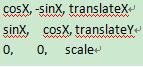
使用Transform.scale对视频进行缩放,我们想要的效果就是不管视频是什么比率,都可以平铺无拉伸的显示。Center让视频放大以后居中显示,缩放比为_controller.value.aspectRatio /MediaQuery.of(context).size.aspectRatio,用视频的宽高比除以设备的宽高比。
如果我们对视频进行处理也会铺满全部屏幕,但是会被拉伸,看起来很丑,可以拉下代码试一下。
@override void dispose() { // TODO: implement dispose super.dispose(); _controller.pause(); } @override Widget build(BuildContext context) { return Scaffold( body: Stack( fit: StackFit.expand, children: <Widget>[ Transform.scale( scale: _controller.value.aspectRatio / MediaQuery.of(context).size.aspectRatio, child: Center( child: Container( child: _controller.value.initialized ? AspectRatio( aspectRatio: _controller.value.aspectRatio, child: VideoPlayer(_controller), ) : Text("正在初始化"), ), ), ), Positioned( width: MediaQuery.of(context).size.width, bottom: 26.0, child: Column( mainAxisAlignment: MainAxisAlignment.center, children: <Widget>[ ClipRRect( borderRadius: BorderRadius.circular(60.0), child: MaterialButton( onPressed: () {}, child: Text( "微信登录", style: TextStyle(fontSize: 15.0, fontWeight: FontWeight.bold), ), color: Color(0xffFFDB2E), textColor: Color(0xff202326), height: 44.0, minWidth: 240.0, elevation: 0.0, ), ), SizedBox( height: 20.0, ), ClipRRect( borderRadius: BorderRadius.circular(60.0), child: MaterialButton( onPressed: () {}, child: Text( "手机号登录", style: TextStyle(fontSize: 15.0, fontWeight: FontWeight.bold), ), color: Color(0xff202326), height: 44.0, minWidth: 240.0, elevation: 0.0, textColor: Color(0xffededed), ), ), SizedBox( height: 60.0, ), Text( "我已阅读并同意《服务协议》及《隐私政策》", style: TextStyle(color: Colors.white, fontSize: 13.0), ) ], ), ), Positioned( width: MediaQuery.of(context).size.width, top: 80.0, child: Column( mainAxisAlignment: MainAxisAlignment.center, children: <Widget>[ Text( "登录", style: TextStyle( fontSize: 40.0, fontWeight: FontWeight.w400, color: Colors.white), ), SizedBox( height: 10.0, ), Text( "视频背景登录页面", style: TextStyle(color: Colors.white, fontSize: 15.0), ) ], ), ) ], )); }写在最后
平时会不定期更新其它的组件欢迎关注,欢迎star。
以上就是本文的全部内容,希望对大家的学习有所帮助,也希望大家多多支持武林网。
新闻热点






疑难解答