ps是一款功能十分强大的图形设计软件,一直深受用户们的喜爱。不过,最近使用html' target='_blank'>win10系统的用户反馈电脑中ps cs6字体很小,使用起来看的非常吃力,通过系统设置里面更改文本应用大小无效,该怎么办?下面,就随小编看看该问题的解决方法。
步骤如下:
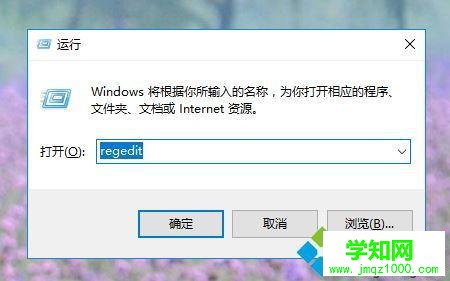
1、按下【win+r】组合键打开运行,输入:regedit 点击确定打开注册表;
2、在注册表左侧依次展开:HKEY_LOCAL_MACHINESOFTWAREMicrosoftWindowsCurrentVersionSideBySide ;
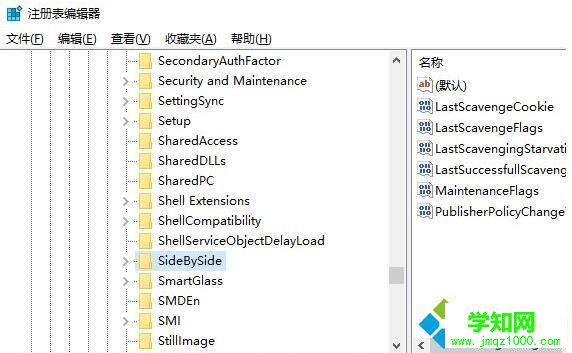
3、在右侧空白处单击鼠标右键,选择【新建】>【DWORD(32位)值】,命名为 PreferExternalManifest ;
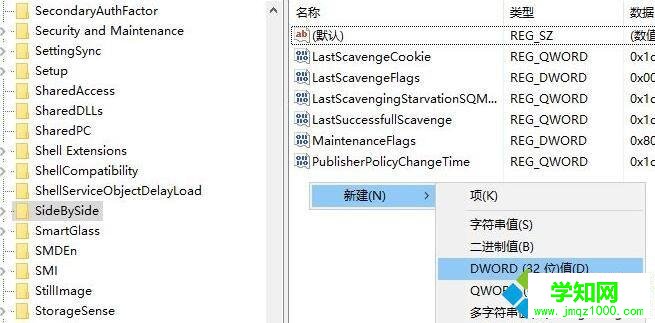
4、双击PreferExternalManifest,将数值数据修改为“1” 点击确定保存;
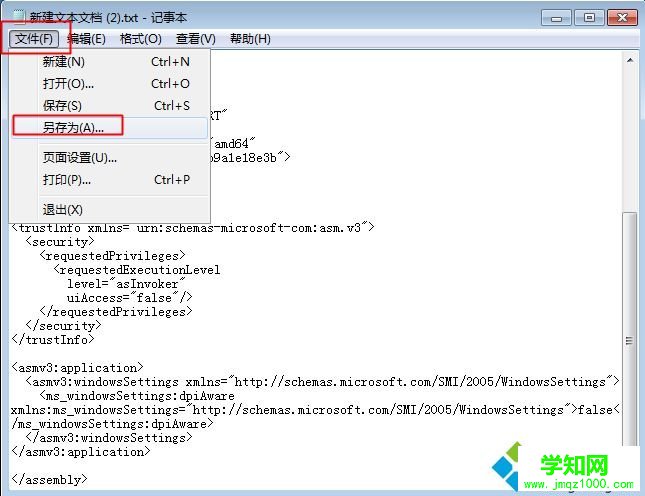
5、在桌面新建一个文本文档,打开后将下面代码复制进入;
<?xml version="1.0" encoding="UTF-8" standalone="yes"?> <assembly xmlns="urn:schemas-microsoft-com:asm.v1" manifestVersion="1.0" xmlns:asmv3="urn:schemas-microsoft-com:asm.v3"> <dependency> <dependentAssembly> <assemblyIdentity type="win32" name="Microsoft.Windows.Common-Controls" version="6.0.0.0" processorArchitecture="*" publicKeyToken="6595b64144ccf1df" language="*"> </assemblyIdentity> </dependentAssembly></dependency> <dependency> <dependentAssembly> <assemblyIdentity type="win32" name="Microsoft.VC90.CRT" version="9.0.21022.8" processorArchitecture="amd64" publicKeyToken="1fc8b3b9a1e18e3b"> </assemblyIdentity> </dependentAssembly></dependency> <trustInfo xmlns="urn:schemas-microsoft-com:asm.v3"> <security> <requestedPrivileges> <requestedExecutionLevel level="asInvoker" uiAccess="false"/> </requestedPrivileges> </security></trustInfo> <asmv3:application> <asmv3:windowsSettings xmlns="http://schemas.microsoft.com/SMI/2005/WindowsSettings"> <ms_windowsSettings:dpiAware xmlns:ms_windowsSettings="http://schemas.microsoft.com/SMI/2005/WindowsSettings">false</ms_windowsSettings:dpiAware> </asmv3:windowsSettings></asmv3:application> </assembly>
6、点击左上角 文件--另存为,文件名命名为photoshop.exe.manifest,保存类型选择“所有文件”,最后点击保存;
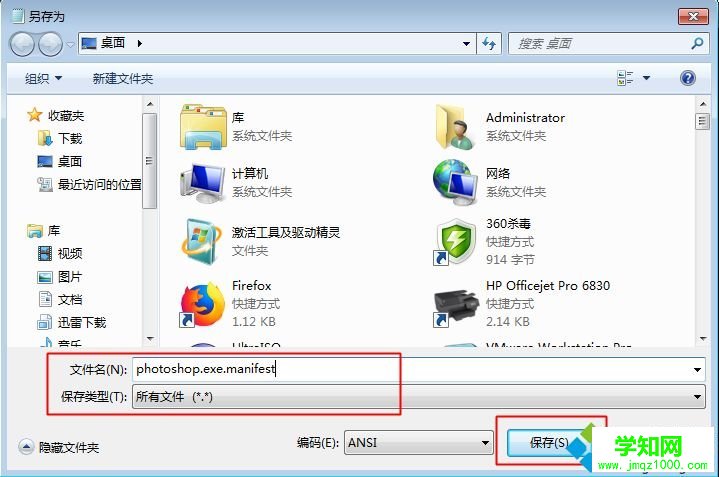
7、找到sp的安装目录,将“photoshop.exe.manifest”复制进入,完成后重新打开ps即可看到效果!
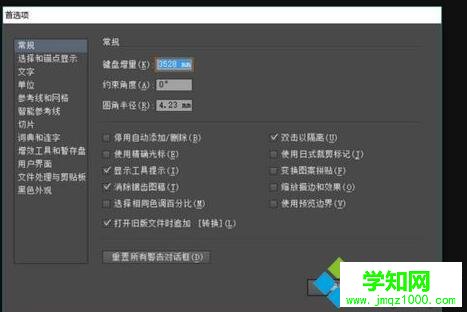
windows10 ps cs6字体很小的解决方法就为大家介绍到这里了。若是你也有同样需求的话,不妨也动手操作看看吧!
郑重声明:本文版权归原作者所有,转载文章仅为传播更多信息之目的,如作者信息标记有误,请第一时间联系我们修改或删除,多谢。
新闻热点



疑难解答