我们在开发中经常用到倒计时的功能,比如发送验证码后,倒计时60s再进行验证码的获取,为了方便以后使用,这里做个记录,讲讲倒计时器的实现。
1、先进行倒计时工具类的封装
public class CountDownTimerUtils extends CountDownTimer { private TextView mTextView; /** * @param textView The TextView * * * @param millisInFuture The number of millis in the future from the call * to {@link #start()} until the countdown is done and {@link #onFinish()} * is called. * @param countDownInterval The interval along the way to receiver * {@link #onTick(long)} callbacks. */ public CountDownTimerUtils(TextView textView, long millisInFuture, long countDownInterval) { super(millisInFuture, countDownInterval); this.mTextView = textView; } /** * 倒计时期间会调用 * @param millisUntilFinished */ @Override public void onTick(long millisUntilFinished) { mTextView.setClickable(false); //设置不可点击 mTextView.setText(millisUntilFinished / 1000 + "秒"); //设置倒计时时间 mTextView.setBackgroundResource(R.drawable.shape_verify_btn_press); //设置按钮为灰色,这时是不能点击的 SpannableString spannableString = new SpannableString(mTextView.getText().toString()); //获取按钮上的文字 ForegroundColorSpan span = new ForegroundColorSpan(Color.RED); /** * public void setSpan(Object what, int start, int end, int flags) { * 主要是start跟end,start是起始位置,无论中英文,都算一个。 * 从0开始计算起。end是结束位置,所以处理的文字,包含开始位置,但不包含结束位置。 */ spannableString.setSpan(span, 0, 2, Spannable.SPAN_INCLUSIVE_EXCLUSIVE);//将倒计时的时间设置为红色 mTextView.setText(spannableString); } /** * 倒计时完成后调用 */ @Override public void onFinish() { mTextView.setText("重新获取验证码"); mTextView.setClickable(true);//重新获得点击 mTextView.setBackgroundResource(R.drawable.shape_verify_btn_normal); //还原背景色 } } 让这个工具类继承CountDownTimer,然后把显示倒计时的View传进去,在倒计时期间会调用onTick方法,在这个方法里面对View的倒计时界面进行刷新,倒计时结束后,会调用onFinish方法,在里面恢复View的状态即可。
2、布局文件
未点击获取验证码时的view布局 shape_verify_btn_normal.xml
<?xml version="1.0" encoding="utf-8"?><shape xmlns:android="http://schemas.android.com/apk/res/android" android:shape="rectangle" > <!-- 填充的颜色:这里设置背景透明 --> <solid android:color="@color/maincolor" /> <!-- 边框的颜色 :不能和窗口背景色一样--> <stroke android:width="1dp" android:color="@color/white" /> <!-- 设置按钮的四个角为弧形 --> <!-- android:radius 弧形的半径 --> <corners android:radius="5dip" /> <!-- padding:Button里面的文字与Button边界的间隔 --> <padding android:bottom="5dp" android:left="5dp" android:right="5dp" android:top="5dp" /></shape>
点击获取验证码之后的view布局 shape_verify_btn_press.xml
<?xml version="1.0" encoding="utf-8"?><shape xmlns:android="http://schemas.android.com/apk/res/android" android:shape="rectangle" > <!-- 填充的颜色:这里设置背景透明 --> <solid android:color="@color/graywhite" /> <!-- 边框的颜色 :不能和窗口背景色一样--> <stroke android:width="1dp" android:color="@color/white" /> <!-- 设置按钮的四个角为弧形 --> <!-- android:radius 弧形的半径 --> <corners android:radius="5dip" /> <!-- padding:Button里面的文字与Button边界的间隔 --> <padding android:bottom="5dp" android:left="5dp" android:right="5dp" android:top="5dp" /></shape>
整个界面的布局
<LinearLayout xmlns:android="http://schemas.android.com/apk/res/android" android:orientation="vertical" android:layout_width="match_parent" android:layout_height="match_parent" android:background="@drawable/login_bg"> <EditText android:id="@+id/rst_phone_number" android:layout_width="match_parent" android:layout_height="40dp" android:inputType="phone" android:hint="@string/phone_number" android:textSize="16sp" android:textColor="@color/black" android:singleLine="true" android:background="@drawable/shape_form" android:textCursorDrawable="@drawable/text_cursor" android:layout_marginLeft="30dp" android:layout_marginRight="30dp" android:layout_marginTop="30dp" android:layout_gravity="center_vertical"/> <LinearLayout android:layout_width="match_parent" android:layout_height="40dp" android:layout_marginLeft="30dp" android:layout_marginRight="30dp" android:layout_marginTop="15dp" android:orientation="horizontal"> <EditText android:id="@+id/rst_verify_code" android:layout_width="wrap_content" android:layout_height="match_parent" android:layout_weight="1" android:inputType="number" android:hint="@string/rst_verify_code" android:textSize="16sp" android:textColor="@color/black" android:singleLine="true" android:background="@drawable/shape_form" android:textCursorDrawable="@drawable/text_cursor" /> <TextView android:id="@+id/rst_send_code" android:layout_width="130dp" android:layout_height="match_parent" android:text="@string/rst_send_code" android:textSize="13sp" android:textColor="@color/white" android:gravity="center" android:layout_marginLeft="10dp" android:background="@drawable/shape_verify_btn_normal"/> </LinearLayout> <Button android:id="@+id/rst_next_step" android:layout_width="match_parent" android:layout_height="40dp" android:layout_margin="30dp" android:text="@string/rst_next_step" android:textSize="15sp" android:textColor="@color/white" android:background="@drawable/shape_btn"/></LinearLayout>
这里布局有个问题,因为获取验证码这个TextView中的字会在倒计时期间有变化,而且每次字的变化长度不一样,如果把它的layout_width设为wrap_content,那么这个TextView的长度会变化,影响界面美观,所以可以把它的长度固定,然后把验证码输入框的layout_weight设为1,这样就可以了。
3、具体使用方法
// 发送成功进入倒计时countDownTimer = new CountDownTimerUtils(tv_send_code, 60000, 1000);countDownTimer.start();
其中60000代表要倒计时的时长,即60s;1000代表每次递减1s。
以上就是具体的实现过程,下面附几张效果图!

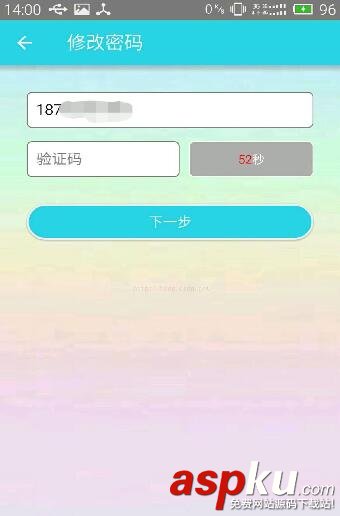
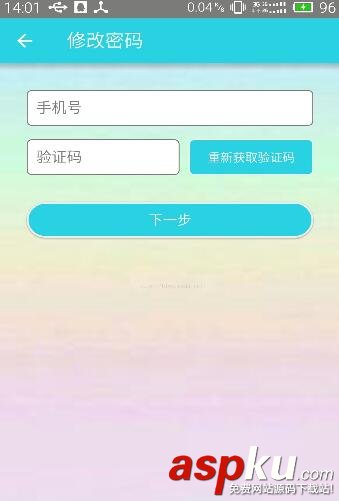
以上就是本文的全部内容,希望对大家的学习有所帮助,也希望大家多多支持VEVB武林网。
新闻热点






疑难解答