最近刚写了一个网易客户端首页导航条的动画效果,现在分享出来给大家学习学习。我说一下这个效果的核心原理。下面是效果图:
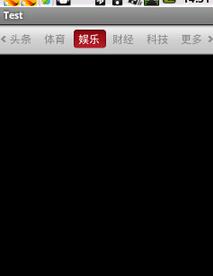
首先是布局,这个布局是我从网易客户端反编译后弄来的。大家看后应该明白,布局文件如下:
<FrameLayout android:id="@id/column_navi" android:layout_width="fill_parent" android:layout_height="wrap_content" android:background="@drawable/top_column_bg" > <HorizontalScrollView android:id="@id/column_scrollview" android:layout_width="fill_parent" android:layout_height="45.0dip" android:layout_gravity="center" android:fadingEdge="vertical" android:paddingLeft="9.0dip" android:paddingRight="9.0dip" android:scrollbars="none" > <FrameLayout android:layout_width="wrap_content" android:layout_height="fill_parent" > <ImageView android:id="@id/column_slide_bar" android:layout_width="wrap_content" android:layout_height="wrap_content" android:layout_gravity="center_vertical" android:src="@drawable/slidebar" /> <LinearLayout android:id="@id/column_title_layout" android:layout_width="wrap_content" android:layout_height="fill_parent" android:layout_gravity="center_vertical" android:gravity="center_vertical" android:paddingLeft="5px" android:weightSum="6.0" /> </FrameLayout> </HorizontalScrollView> <ImageButton android:id="@id/column_to_left" android:layout_width="wrap_content" android:layout_height="wrap_content" android:layout_alignParentLeft="true" android:layout_centerVertical="true" android:layout_gravity="left|center" android:layout_marginLeft="2.0dip" android:layout_marginRight="1.0dip" android:background="#00000000" android:src="@drawable/arr_left" android:visibility="visible" /> <ImageButton android:id="@id/column_to_right" android:layout_width="wrap_content" android:layout_height="wrap_content" android:layout_alignParentRight="true" android:layout_centerVertical="true" android:layout_gravity="right|center" android:layout_marginLeft="1.0dip" android:layout_marginRight="2.0dip" android:background="#00000000" android:src="@drawable/arr_right" android:visibility="visible" /> </FrameLayout>
这里用了HorizontalScrollView横向滚动视图主要是为了实现当导航栏个数超出屏幕以后可以实现左右移动的效果,这2个ImageButton则是用来实现左右滚动的操作。HorizontalScrollView里面用的一个框架布局,大家都知道框架布局是一个叠加式的 布局,所以里面的ImageView会在LinearLayout布局下面一层,这个ImageView就是实现动态背景效果的。而LinearLayout里面放的是TextView,这里是在后台程序里面动态添加。
那要怎样实现当我点击一个TextView 后实现后面的ImageView动态移动到我选中的TextView位置呢?这里我们需要为每一个TextView添加onTouchEvent()时间,并且监听ACTION_DOWN时间,也就是手指按下的时候,这时我们就启动一个TranslateAnimation平移动画,在动画结束时,再将ImageView移动到textview的位置。移动textview的位置我这里是动态调整textview的布局来实现的。
下面是实现的代码:
private void translateImage(MotionEvent event) { float x = event.getX(); float rx = event.getRawX(); final float nx = rx - x - 12; TranslateAnimation trans = null; if (nx > lastX) { trans = new TranslateAnimation(0, nx - lastX, 0, 0); } else if (nx < lastX) { trans = new TranslateAnimation(0, (lastX - nx) * -1, 0, 0); } else { return; } trans.setDuration(300); trans.setAnimationListener(new AnimationListener() { @Override public void onAnimationStart(Animation animation) { // TODO Auto-generated method stub } @Override public void onAnimationRepeat(Animation animation) { // TODO Auto-generated method stub } @Override public void onAnimationEnd(Animation animation) { FrameLayout.LayoutParams params = (android.widget.FrameLayout.LayoutParams) column_slide_bar .getLayoutParams(); params.leftMargin = (int) nx; column_slide_bar.setLayoutParams(params); } }); trans.setFillEnabled(true); column_slide_bar.startAnimation(trans); lastX = (int) nx; } 这个方法的开头我是取到手指按下的textview的坐标位置,而lastX是上一次手指按下的位置,我这里做了判断来确定移动的方向,然后给动画添加了一个动画监听事件,在动画结束时我就动态的把imageview移动到新的坐标位置。setFillEnabled(true);这里的作用主要是避免动画乱跳,这里具体是什么原因我也还不太清楚,但是设置以后动画一切都正常。
下面是textview的onTouchEvent事件的代码:
@Override public boolean onTouch(View v, MotionEvent event) { if (event.getAction() == MotionEvent.ACTION_DOWN) { if (up_text != null) { up_text.setTextColor(Color.BLACK); } else { TextView text = (TextView) context .findViewById(R.id.head_lines); text.setTextColor(Color.BLACK); } translateImage(event); TextView tv = (TextView) v; tv.setTextColor(Color.WHITE); up_text = tv; } return true; } 在这段代码中我主要是实现了textview的字体颜色的变还,大家应该看得懂,没什么好说的吧。
最后就是实现HorizontalScrollView控件通过单机左右的imageButton来实现左右移动,这个就是在ImageButton的OnClick事件中来调用HorizontalScrollView的smoothScrollTo(x,y)方法这里面是传入新的坐标。下面是实现代码:
private void addListener() { column_to_left.setOnClickListener(new OnClickListener() { @Override public void onClick(View v) { column_scrollview.smoothScrollTo( column_scrollview.getScrollX() - 40, 0); } }); column_to_right.setOnClickListener(new View.OnClickListener() { @Override public void onClick(View v) { column_scrollview.smoothScrollTo( column_scrollview.getScrollX() + 40, 0); } }); } 下面是动态添加textview的代码:
private void initView() { column_title_layout = (LinearLayout) findViewById(R.id.column_title_layout); column_scrollview = (HorizontalScrollView) findViewById(R.id.column_scrollview); column_slide_bar = (ImageView) findViewById(R.id.column_slide_bar); column_to_left = (ImageButton) findViewById(R.id.column_to_left); column_to_right = (ImageButton) findViewById(R.id.column_to_right); LinearLayout.LayoutParams params = new LinearLayout.LayoutParams(65, LayoutParams.WRAP_CONTENT); params.gravity = Gravity.CENTER_HORIZONTAL | Gravity.CENTER_VERTICAL; params.leftMargin = 9; TextViewOnTouchListener listener = new TextViewOnTouchListener( column_slide_bar, this); TextView text = null; for (int i = 0; i < 6; i++) { text = new TextView(this); text.setTextSize(16); switch (i) { case 0: text.setId(R.id.head_lines); text.setTextColor(Color.WHITE); text.setText("头条"); break; case 1: text.setId(R.id.sport); text.setTextColor(Color.BLACK); text.setText("体育"); break; case 2: text.setId(R.id.entertainment); text.setTextColor(Color.BLACK); text.setText("娱乐"); break; case 3: text.setId(R.id.finance); text.setTextColor(Color.BLACK); text.setText("财经"); break; case 4: text.setId(R.id.technology); text.setTextColor(Color.BLACK); text.setText("科技"); break; case 5: text.setId(R.id.more); text.setTextColor(Color.BLACK); text.setText("更多"); break; } text.setOnTouchListener(listener); column_title_layout.addView(text, params); } } 下面是ids.xml文件中定义的动态生成控件的id:
<?xml version="1.0" encoding="utf-8"?> <resources> <item name="column_scrollview" type="id"/> <item name="column_slide_bar" type="id"/> <item name="column_title_layout" type="id"/> <item name="column_navi" type="id"/> <item name="column_to_left" type="id"/> <item name="column_to_right" type="id"/> <item name="scroll_layout" type="id"/> <item name="vote" type="id"/> <item name="comment" type="id"/> <item name="picture" type="id"/> <item name="topic" type="id"/> <item name="news" type="id"/> <item name="head_lines" type="id"/> <item name="sport" type="id"/> <item name="entertainment" type="id"/> <item name="finance" type="id"/> <item name="technology" type="id"/> <item name="more" type="id"/> </resources>
以上就是本文的全部内容,希望对大家的学习有所帮助,也希望大家多多支持VEVB武林网。