XML对开发者来说十分的方便,不仅使用起来简单,而且能够及时调试,修改界面之后马上能看到效果。
Java设置布局不具有这个优势。但是java却可以动态对布局进行操作,这是xml所做不到的。笔者认为,新手索要掌握的java动态设置布局主要有两点,一方面是对布局的属性进行修改,另一方面是增添和删除控件。
首先说一下动态设置布局在项目中的应用,拿高德地图举个例子,如下图:
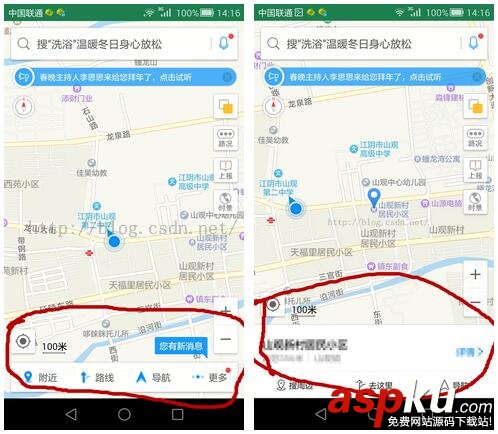
我们可以看到,高德地图的默认界面与点击地图之后的界面是不一样的,上面同样的控件在layout中的位置也不一样,这个用xml便是难以实现的了,于是java动态设置布局便有了其重要性。
接下来看一下分享的demo效果:
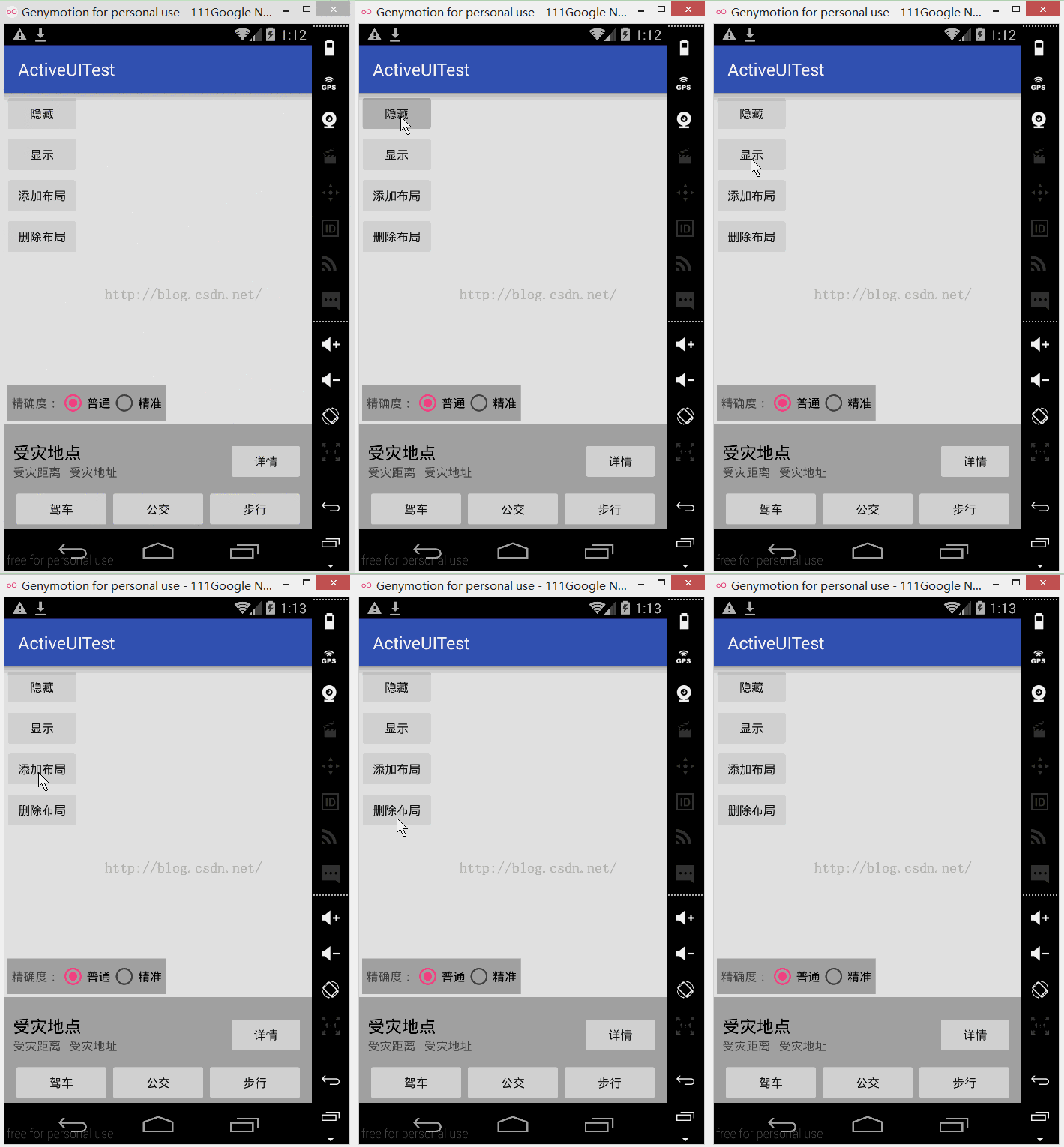
代码其实比较容易理解,具体的解释已经注释在代码中了,读者可以自己写了理解一下。
MainActivity:
package com.example.activeuitest; import android.support.v7.app.AppCompatActivity; import android.os.Bundle; import android.view.LayoutInflater; import android.view.View; import android.view.ViewGroup; import android.widget.Button; import android.widget.LinearLayout; import android.widget.RadioGroup; import android.widget.RelativeLayout; public class MainActivity extends AppCompatActivity implements View.OnClickListener{ private Button BT_Gone;//让布局隐藏 private Button BT_Visiable;//让布局显示 private Button BT_Add;//增添布局 private Button BT_Delete;//删除布局 private RelativeLayout RL_main; private RadioGroup RL_RadioGroup; private RelativeLayout RL_InfoTip; private LinearLayout LL_test; @Override protected void onCreate(Bundle savedInstanceState) { super.onCreate(savedInstanceState); setContentView(R.layout.activity_main); init();//初始化 } private void init() { BT_Gone= (Button) findViewById(R.id.button1); BT_Visiable= (Button) findViewById(R.id.button2); BT_Add= (Button) findViewById(R.id.button3); BT_Delete= (Button) findViewById(R.id.button4); RL_main=(RelativeLayout)findViewById(R.id.main_layout); RL_RadioGroup=(RadioGroup)findViewById(R.id.radio_group); RL_InfoTip=(RelativeLayout)findViewById(R.id.info_tip); //此处要获取其他xml的控件需要先引入改layout的view(这个linearlayout用于演示添加和删除) View view= LayoutInflater.from(this).inflate(R.layout.test_linear_layout,null,false ); LL_test=(LinearLayout)view.findViewById(R.id.test_layout); BT_Gone.setOnClickListener(this); BT_Visiable.setOnClickListener(this); BT_Add.setOnClickListener(this); BT_Delete.setOnClickListener(this); } @Override public void onClick(View v) { switch(v.getId()){ case R.id.button1: RL_InfoTip.setVisibility(View.GONE);//底部tip设置不可见 //初始化宽高属性 RelativeLayout.LayoutParams lp1 = new RelativeLayout.LayoutParams( ViewGroup.LayoutParams.WRAP_CONTENT, ViewGroup.LayoutParams.WRAP_CONTENT); lp1.addRule(RelativeLayout.ALIGN_PARENT_BOTTOM);//设置置底 lp1.setMargins(10, 0, 0, 10);//设置margin,此处单位为px RL_RadioGroup.setLayoutParams(lp1);//动态改变布局 break; case R.id.button2: RL_InfoTip.setVisibility(View.VISIBLE);//底部tip设置可见 //初始化宽高属性 RelativeLayout.LayoutParams lp2 = new RelativeLayout.LayoutParams( ViewGroup.LayoutParams.WRAP_CONTENT, ViewGroup.LayoutParams.WRAP_CONTENT); lp2.setMargins(10, 0, 0, 10);//设置margin,此处单位为px lp2.addRule(RelativeLayout.ABOVE, R.id.info_tip);//设置above,让控件于R.id.info_tip之上 RL_RadioGroup.setLayoutParams(lp2);//动态改变布局 break; case R.id.button3: //初始化宽高属性,此处单位为px RelativeLayout.LayoutParams lp3 = new RelativeLayout.LayoutParams(200, 200); lp3.addRule(RelativeLayout.BELOW, R.id.button4);//设置below,让控件于R.id.button4之下 RL_main.addView(LL_test, lp3);//动态改变布局 LL_test.setVisibility(View.VISIBLE);//此处需要设置布局显示,否则会不显示 break; case R.id.button4: RL_main.removeView(LL_test);//动态改变布局 break; } } } activity_main:
<?xml version="1.0" encoding="utf-8"?> <RelativeLayout xmlns:android="http://schemas.android.com/apk/res/android" android:layout_width="match_parent" android:layout_height="match_parent" android:id="@+id/main_layout" > <Button android:id="@+id/button1" android:layout_width="wrap_content" android:layout_height="wrap_content" android:text="隐藏"/> <Button android:id="@+id/button2" android:layout_below="@+id/button1" android:layout_width="wrap_content" android:layout_height="wrap_content" android:text="显示"/> <Button android:id="@+id/button3" android:layout_below="@+id/button2" android:layout_width="wrap_content" android:layout_height="wrap_content" android:text="添加布局"/> <Button android:id="@+id/button4" android:layout_below="@+id/button3" android:layout_width="wrap_content" android:layout_height="wrap_content" android:text="删除布局"/> <RadioGroup android:id="@+id/radio_group" android:layout_width="wrap_content" android:layout_height="wrap_content" android:padding="5dp" android:layout_marginLeft="10px" android:layout_marginBottom="10px" android:orientation="horizontal" android:layout_above="@+id/info_tip" android:background="@android:color/darker_gray" > <TextView android:layout_width="wrap_content" android:layout_height="wrap_content" android:text="精确度:"/> <RadioButton android:layout_width="wrap_content" android:layout_height="wrap_content" android:checked="true" android:text="普通" android:textColor="@android:color/black" /> <RadioButton android:layout_width="wrap_content" android:layout_height="wrap_content" android:text="精准" android:textColor="@android:color/black" /> </RadioGroup> <RelativeLayout android:id="@+id/info_tip" android:layout_width="match_parent" android:layout_height="wrap_content" android:layout_alignParentBottom="true" android:paddingLeft="10dp" android:paddingRight="10dp" android:paddingTop="20dp" android:background="@android:color/darker_gray" > <TextView android:id="@+id/info_tip_name" android:layout_width="wrap_content" android:layout_height="wrap_content" android:text="受灾地点" android:textColor="@android:color/black" android:textSize="20dp"/> <TextView android:id="@+id/info_tip_distance" android:layout_below="@+id/info_tip_name" android:layout_width="wrap_content" android:layout_height="wrap_content" android:text="受灾距离"/> <TextView android:id="@+id/info_tip_address" android:layout_toRightOf="@+id/info_tip_distance" android:layout_below="@+id/info_tip_name" android:layout_width="wrap_content" android:layout_height="wrap_content" android:layout_marginLeft="10dp" android:text="受灾地址"/> <Button android:layout_alignParentRight="true" android:layout_width="wrap_content" android:layout_height="wrap_content" android:text="详情"/> <LinearLayout android:layout_below="@+id/info_tip_address" android:layout_width="match_parent" android:layout_height="wrap_content" android:layout_marginTop="10dp" android:orientation="horizontal"> <Button android:layout_width="0dp" android:layout_weight="1" android:layout_height="wrap_content" android:text="驾车"/> <Button android:layout_width="0dp" android:layout_weight="1" android:layout_height="wrap_content" android:text="公交"/> <Button android:layout_width="0dp" android:layout_weight="1" android:layout_height="wrap_content" android:text="步行"/> </LinearLayout> </RelativeLayout> </RelativeLayout>
test_linear_layout:
<?xml version="1.0" encoding="utf-8"?> <LinearLayout xmlns:android="http://schemas.android.com/apk/res/android" android:layout_width="200dp" android:layout_height="200dp" android:background="@android:color/holo_blue_bright" android:id="@+id/test_layout" android:orientation="horizontal" > </LinearLayout>
以上就是本文的全部内容,希望对大家的学习有所帮助。