这篇文章主要介绍了Android实现的可以调整透明度的图片查看器,需要的朋友可以参考下
本文以实例讲解了基于Android的可以调整透明度的图片查看器实现方法,具体如下:
main.xml部分代码如下:
- <?xml version="1.0" encoding="utf-8"?>
- <LinearLayout xmlns:android="http://schemas.android.com/apk/res/android"
- android:layout_width="fill_parent"
- android:layout_height="fill_parent"
- android:orientation="vertical" >
- <LinearLayout
- android:layout_width="match_parent"
- android:layout_height="wrap_content" >
- <Button
- android:id="@+id/button1"
- android:layout_width="wrap_content"
- android:layout_height="wrap_content"
- android:text="增大透明度" />
- <Button
- android:id="@+id/button2"
- android:layout_width="wrap_content"
- android:layout_height="wrap_content"
- android:text="减小透明度" />
- <Button
- android:id="@+id/button3"
- android:layout_width="wrap_content"
- android:layout_height="wrap_content"
- android:text="下一张" />
- </LinearLayout>
- <!-- 定义显示整体图片的ImageView -->
- <ImageView
- android:id="@+id/imageView1"
- android:layout_width="wrap_content"
- android:layout_height="wrap_content"
- android:background="#0000ff"
- android:scaleType="fitCenter"
- android:src="@drawable/shuangta" />
- <!-- 定义显示局部图片的ImageView -->
- <ImageView
- android:id="@+id/imageView2"
- android:layout_width="wrap_content"
- android:layout_height="wrap_content"
- android:layout_marginTop="10dp"
- android:background="#0000ff" />
- </LinearLayout>
java部分代码为:
- package android.demo;
- import android.app.Activity;
- import android.graphics.Bitmap;
- import android.graphics.BitmapFactory;
- import android.graphics.drawable.BitmapDrawable;
- import android.os.Bundle;
- import android.view.MotionEvent;
- import android.view.View;
- import android.view.View.OnClickListener;
- import android.view.View.OnTouchListener;
- import android.widget.Button;
- import android.widget.ImageView;
- public class AndroidDemo5Activity extends Activity {
- // 定义一个访问图片的数组
- int[] images = new int[] { R.drawable.lijiang, R.drawable.qiao,
- R.drawable.shuangta, R.drawable.shui, R.drawable.xiangbi,
- R.drawable.ic_launcher, };
- // 定义当前显示的图片
- int currentImage = 2;
- // 定义图片的初始透明度
- private int alpha = 255;
- @Override
- protected void onCreate(Bundle savedInstanceState) {
- // TODO Auto-generated method stub
- super.onCreate(savedInstanceState);
- setContentView(R.layout.main);
- final Button plusButton = (Button) findViewById(R.id.button1);
- final Button minuxButton = (Button) findViewById(R.id.button2);
- final Button nextButton = (Button) findViewById(R.id.button3);
- final ImageView imageview1 = (ImageView) findViewById(R.id.imageView1);
- final ImageView imageview2 = (ImageView) findViewById(R.id.imageView2);
- // 定义查看下一张图片的时间监听器
- nextButton.setOnClickListener(new OnClickListener() {
- @Override
- public void onClick(View v) {
- if (currentImage >= 5) {
- currentImage = -1;
- }
- BitmapDrawable bitmap = (BitmapDrawable) imageview1
- .getDrawable();
- // 如果图片还没有回收,先强制回收图片
- if (!bitmap.getBitmap().isRecycled()) {
- bitmap.getBitmap().recycle();
- }
- // 改变ImageView的图片
- imageview1.setImageBitmap(BitmapFactory.decodeResource(
- getResources(), images[++currentImage]));
- }
- });
- // 定义改变图片透明度的方法
- OnClickListener listener = new OnClickListener() {
- @Override
- public void onClick(View v) {
- if (v == plusButton) {
- alpha += 20;
- }
- if (v == minuxButton) {
- alpha -= 20;
- }
- if (alpha > 255) {
- alpha = 255;
- }
- if (alpha <= 0) {
- alpha = 0;
- }
- // 改变图片的透明度
- imageview1.setAlpha(alpha);
- }
- };
- // 为2个按钮添加监听器
- plusButton.setOnClickListener(listener);
- minuxButton.setOnClickListener(listener);
- imageview1.setOnTouchListener(new OnTouchListener() {
- @Override
- public boolean onTouch(View arg0, MotionEvent arg1) {
- // TODO Auto-generated method stub
- BitmapDrawable bitmapDeaw = (BitmapDrawable) imageview1
- .getDrawable();
- // 获取第一个图片显示框中的位图
- Bitmap bitmap = bitmapDeaw.getBitmap();
- double scale = bitmap.getWidth();
- // 或许需要显示图片的开始点
- int x = (int) (arg1.getX() * scale);
- int y = (int) (arg1.getY() * scale);
- if (x + 120 > bitmap.getWidth()) {
- x = bitmap.getWidth() - 120;
- }
- if (y + 120 > bitmap.getHeight()) {
- y = bitmap.getHeight() - 120;
- }
- // 显示图片的指定区域
- imageview2.setImageBitmap(Bitmap.createBitmap(bitmap, x, y,
- 120, 120));
- imageview2.setAlpha(alpha);
- return false;
- }
- });
- }
- }
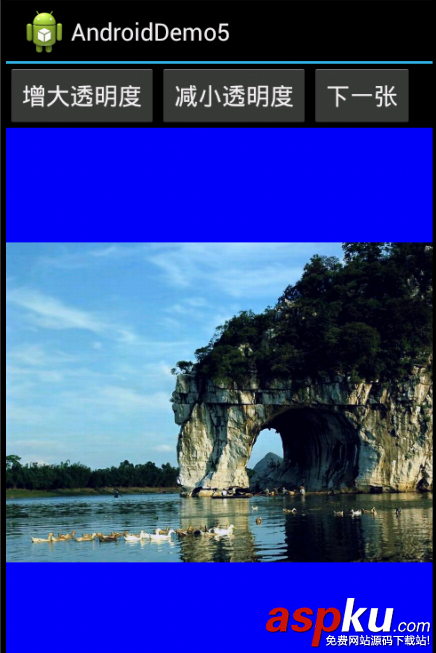
运行效果图如下:
新闻热点






疑难解答