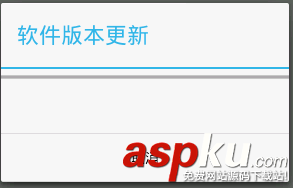
相信所有的用户都遇到过软件提醒更新的情况,下面就将实现此功能
首先看一下程序目录结构
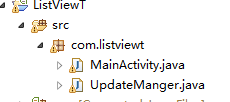
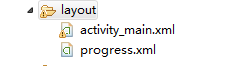
步骤:
1、新建一个类UpdateManger,用于显示提示更新
public class UpdateManger {
// 应用程序Context
private Context mContext;
// 提示消息
private String updateMsg = "有最新的软件包,请下载!";
// 下载安装包的网络路径
private String apkUrl = "http://softfile.3g.qq.com:8080/msoft/179/24659/43549/qq_hd_mini_1.4.apk";
private Dialog noticeDialog;// 提示有软件更新的对话框
private Dialog downloadDialog;// 下载对话框
private static final String savePath = "/sdcard/updatedemo/";// 保存apk的文件夹
private static final String saveFileName = savePath + "UpdateDemoRelease.apk";
// 进度条与通知UI刷新的handler和msg常量
private ProgressBar mProgress;
private static final int DOWN_UPDATE = 1;
private static final int DOWN_OVER = 2;
private int progress;// 当前进度 private Thread downLoadThread; // 下载线程 private boolean interceptFlag = false;// 用户取消下载 // 通知处理刷新界面的handler private Handler mHandler = new Handler() { @SuppressLint("HandlerLeak") @Override public void handleMessage(Message msg) { switch (msg.what) { case DOWN_UPDATE: mProgress.setProgress(progress); break; case DOWN_OVER: installApk(); break; } super.handleMessage(msg); } }; public UpdateManger(Context context) { this.mContext = context; } // 显示更新程序对话框,供主程序调用 public void checkUpdateInfo() { showNoticeDialog(); } private void showNoticeDialog() { android.app.AlertDialog.Builder builder = new android.app.AlertDialog.Builder( mContext);// Builder,可以通过此builder设置改变AleartDialog的默认的主题样式及属性相关信息 builder.setTitle("软件版本更新"); builder.setMessage(updateMsg); builder.setPositiveButton("下载", new OnClickListener() { @Override public void onClick(DialogInterface dialog, int which) { dialog.dismiss();// 当取消对话框后进行操作一定的代码?取消对话框 showDownloadDialog(); } }); builder.setNegativeButton("以后再说", new OnClickListener() { @Override public void onClick(DialogInterface dialog, int which) { dialog.dismiss(); } }); noticeDialog = builder.create(); noticeDialog.show(); } protected void showDownloadDialog() { android.app.AlertDialog.Builder builder = new android.app.AlertDialog.Builder(mContext); builder.setTitle("软件版本更新"); final LayoutInflater inflater = LayoutInflater.from(mContext); View v = inflater.inflate(R.layout.progress, null);
mProgress = (ProgressBar) v.findViewById(R.id.progress); builder.setView(v);// 设置对话框的内容为一个View builder.setNegativeButton("取消", new OnClickListener() { @Override public void onClick(DialogInterface dialog, int which) { dialog.dismiss(); interceptFlag = true; } }); downloadDialog = builder.create(); downloadDialog.show(); downloadApk(); } private void downloadApk() { downLoadThread = new Thread(mdownApkRunnable); downLoadThread.start(); } protected void installApk() { File apkfile = new File(saveFileName); if (!apkfile.exists()) { return; } Intent i = new Intent(Intent.ACTION_VIEW); i.setDataAndType(Uri.parse("file://" + apkfile.toString()), "application/vnd.android.package-archive");// File.toString()会返回路径信息 mContext.startActivity(i); } private Runnable mdownApkRunnable = new Runnable() { @Override public void run() { URL url; try { url = new URL(apkUrl); HttpURLConnection conn = (HttpURLConnection) url.openConnection(); conn.connect(); int length = conn.getContentLength(); InputStream ins = conn.getInputStream();
File file = new File(savePath); if (!file.exists()) { file.mkdir(); } String apkFile = saveFileName; File ApkFile = new File(apkFile); FileOutputStream outStream = new FileOutputStream(ApkFile); int count = 0; byte buf[] = new byte[1024]; do { int numread = ins.read(buf); count += numread; progress = (int) (((float) count / length) * 100); // 下载进度 mHandler.sendEmptyMessage(DOWN_UPDATE); if (numread <= 0) { // 下载完成通知安装 mHandler.sendEmptyMessage(DOWN_OVER); break; } outStream.write(buf, 0, numread); } while (!interceptFlag);// 点击取消停止下载 outStream.close(); ins.close(); } catch (Exception e) { e.printStackTrace(); } } }; }
2、新建一个xml文件,用于定义下载过程中的ProgressBar的进度显示,名为progress.xml
<ProgressBar android:id="@+id/progress" style="?android:attr/progressBarStyleHorizontal" android:layout_width="fill_parent" android:layout_height="wrap_content" />
</LinearLayout>
mUpdateManger = new UpdateManger(MainActivity.this);// 注意此处不能传入getApplicationContext();会报错,因为只有是一个Activity才可以添加窗体 mUpdateManger.checkUpdateInfo();
并且在配置清单文件中添加网络权限 <uses-permission android:name="android.permission.INTERNET" />
4、运行程序
--点击下载-->